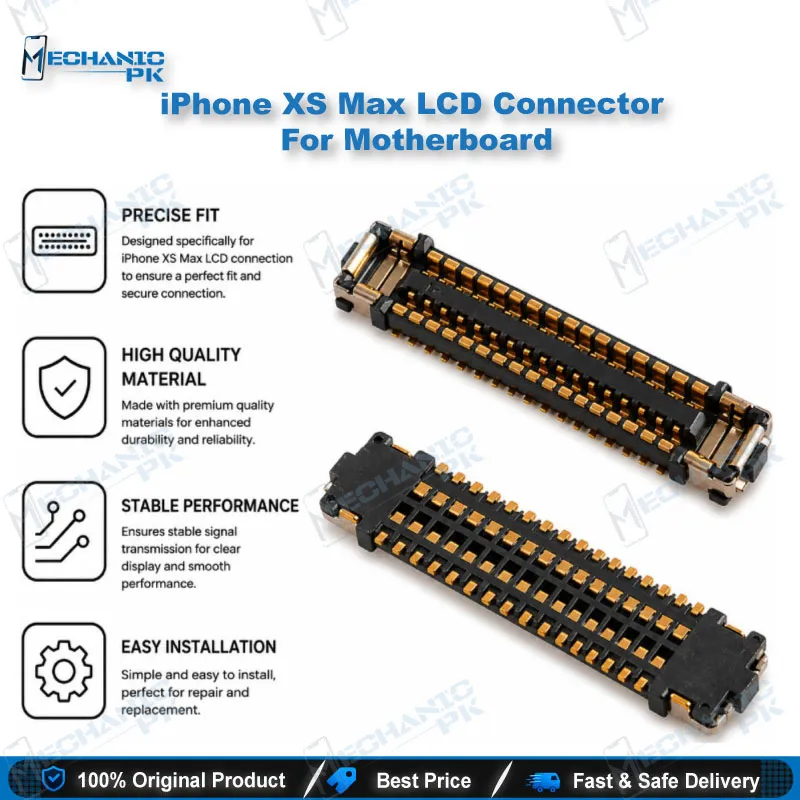
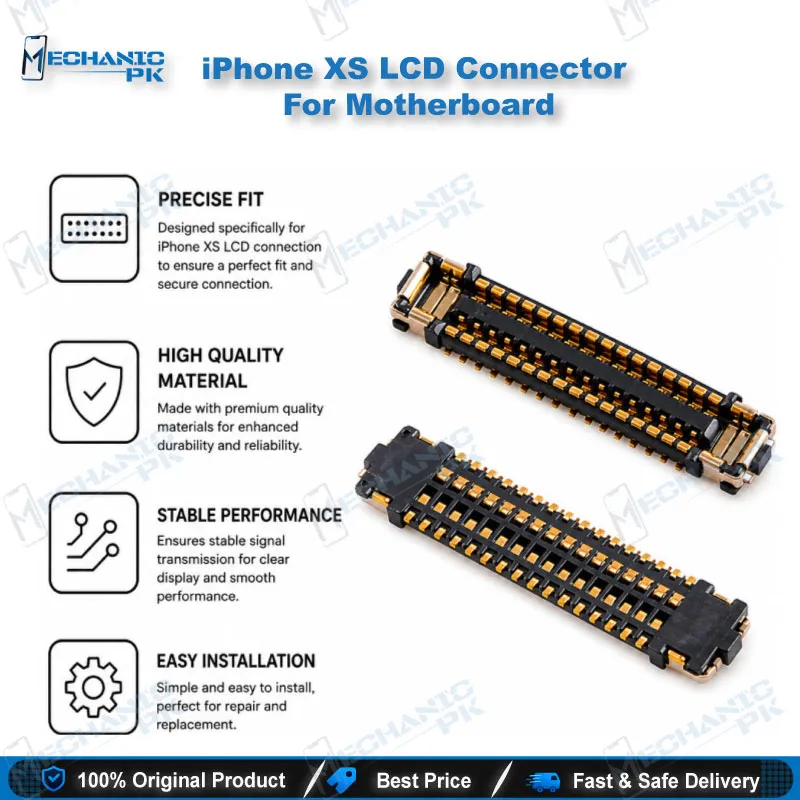
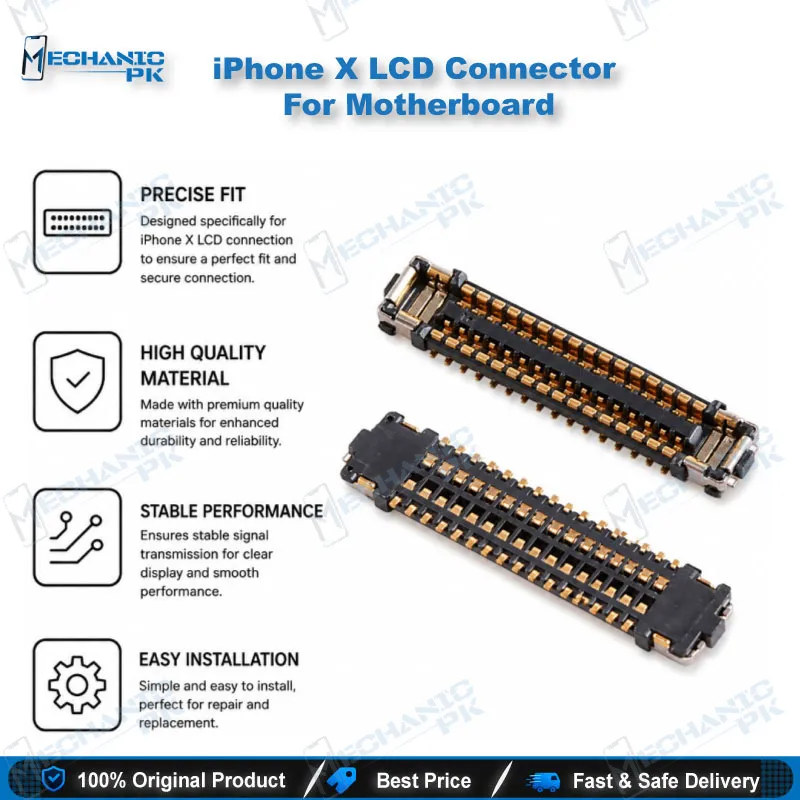













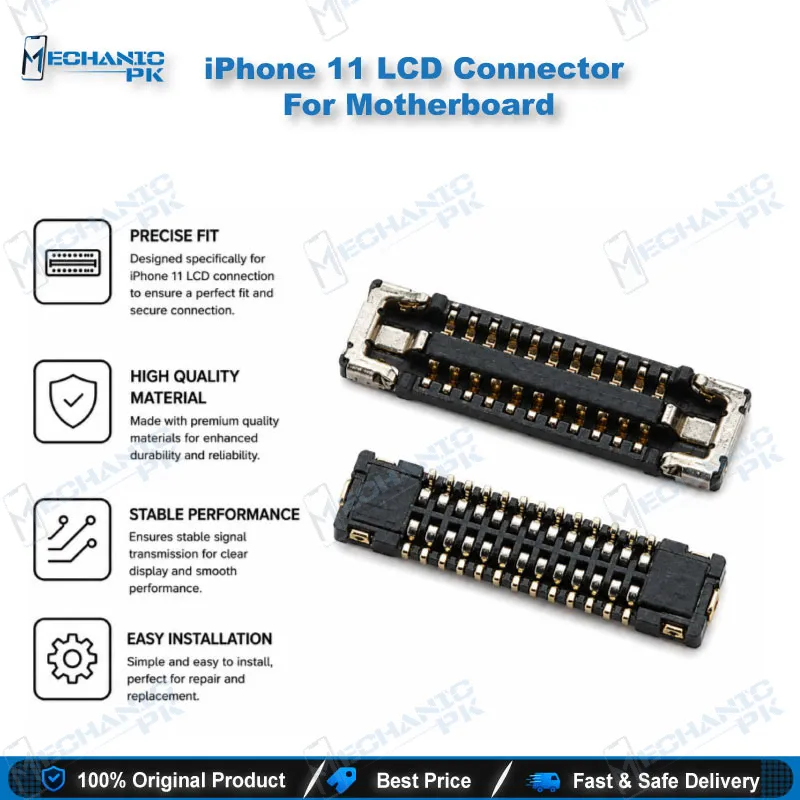
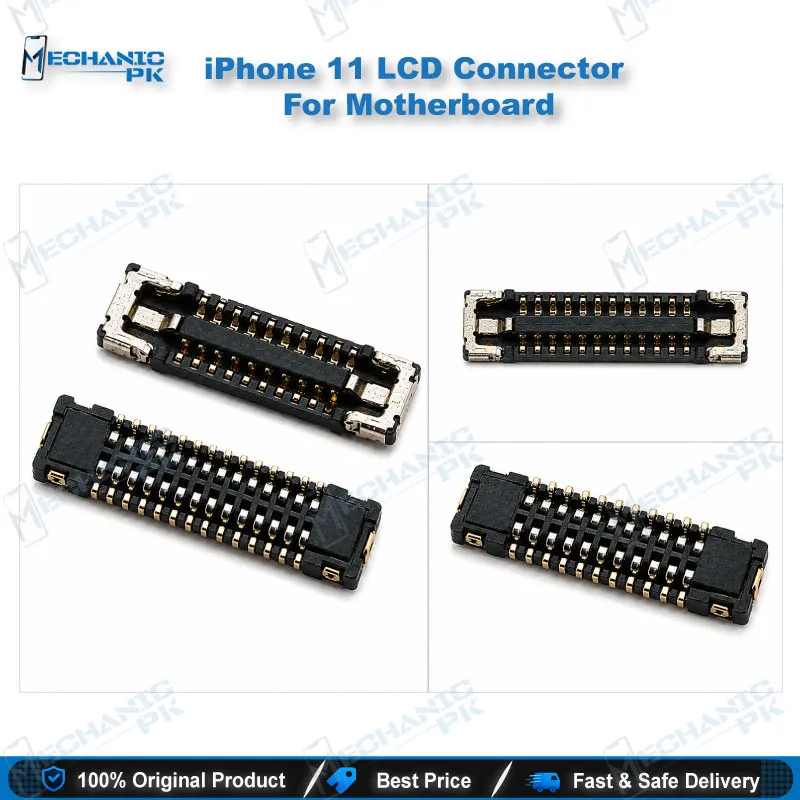
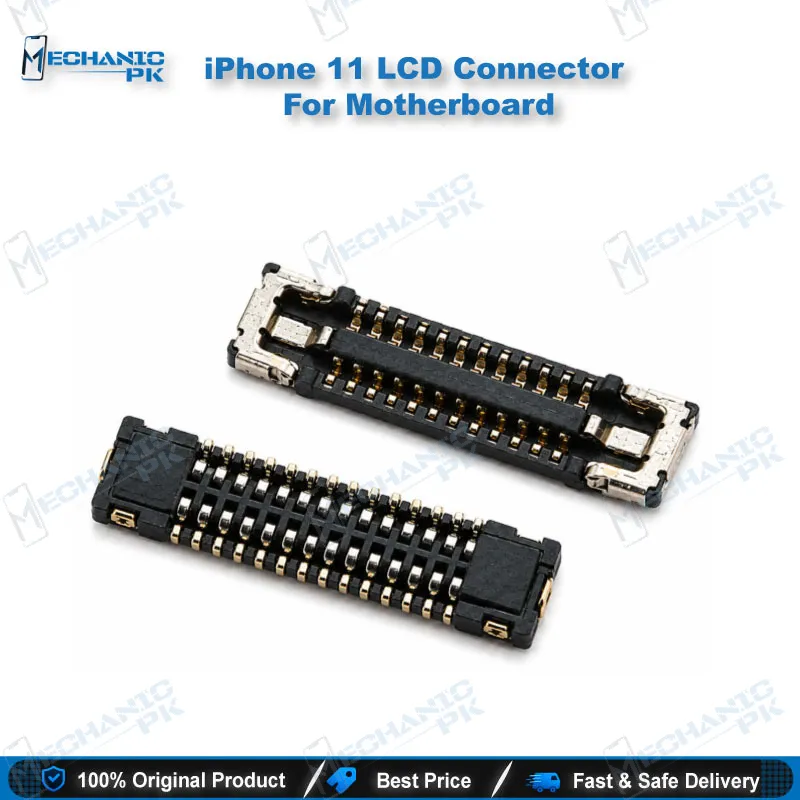
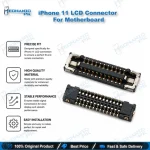
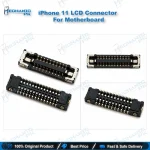
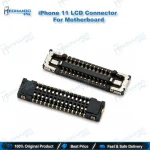
iPhone 11 LCD Connector For Motherboard Replacement
₨ 250
iPhone 11 LCD Connector for Motherboard Replacement
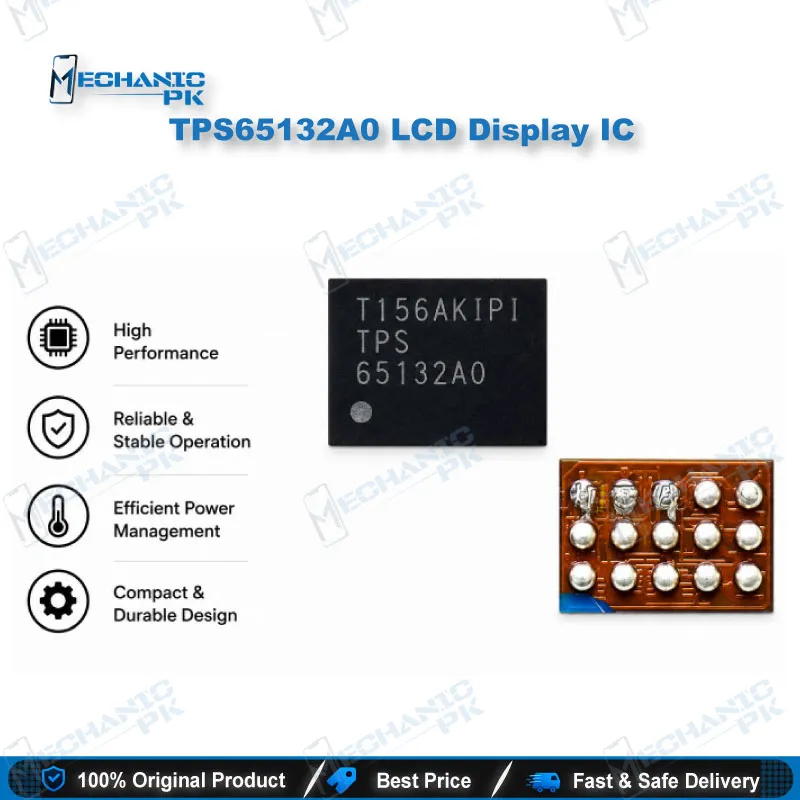
Your iPhone 11 shows no picture, a backlit black screen, or a display that flickers when you press the board area? The LCD connector on the logic board carries the display signal from the motherboard to the panel, so one lifted pad or cracked joint can break the picture even when the screen itself is healthy. This replacement connector gives your repair bench a direct fix for that joint. Use it after you confirm the fault sits on the board side, then rework the pads, reflow the connector, and test the display path before you close the phone. Check the display flex cable and panel first, so you do not replace good parts.
Out of stock
iPhone 11 LCD Connector for Motherboard Repair
The iPhone 11 LCD connector sits on the logic board and links the display flex cable to the main circuitry. When this joint fails, you see symptoms such as no picture, a backlight with no image, or a screen that drops out when the board flexes. Many technicians replace the whole display first and lose time and margin. A structured check of the LCD connector and its pads prevents that cost. This page explains where the connector fits in your workflow, how to diagnose it, how to replace it cleanly, and how to test the result.
Where the Connector Fits and How to Diagnose It
On the iPhone 11, the display flex cable carries the signal from the logic board to the Liquid Retina LCD panel. During disassembly, you disconnect the LCD connector along with the touch and earpiece connectors before you lift the board, so the joint sees repeated handling. Pads can lift under heat or after strain, and the cracks often stay invisible under normal light. Start with a visual inspection under magnification and look for lifted pads, cold joints, bent pins, and debris around the housing. Next, check continuity with a multimeter against the expected traces, and compare readings with a known-good board if you have one. Test the panel and flex cable separately, and only then mark the board-side connector as the prime suspect.
Replacement and Post-Repair Testing
Work in a clean, anti-static area and protect nearby components with Kapton tape. Preheat the board to reduce thermal shock, then remove the old connector with hot air and flux. Clean the pads with flux and fine solder braid, and inspect each pad under the microscope before you place the new part. Align the pins carefully, apply flux, and reflow with a controlled profile, because excess heat can soften the housing or lift neighboring pads. Let the board cool before you handle it. Reconnect the display flex and power the phone on. Confirm the picture, backlight, brightness control, and touch response, then apply light pressure around the connector while the display runs to catch an intermittent joint.
Common Failure Patterns on the Bench
Most failed LCD connectors show a picture that flickers when the phone moves or when you press the board near the connector. A drop often cracks the housing and breaks pin contact, which gives a fault that appears only in certain positions. Water exposure can corrode the pads and leave a dark line or intermittent display, so clean the area before you test again. Heat damage from an earlier repair frequently lifts the pad nearest the board edge. Match the symptom to the root cause before you order a new display, because the right fix depends on whether the fault is mechanical, thermal, or corrosion-related. This approach protects your turnaround time and your customer’s trust.
| Weight | 0.1 kg |
|---|
Key Features
- Designed for the iPhone 11 LCD connector position on the logic board
- Supports board-level replacement on the display signal path
- Suits rework with hot air, flux, and microscope-assisted soldering
- Fits the diagnose-then-replace workflow used on iPhone 11 display faults
Specifications
| Compatibility | iPhone 11 |
|---|---|
| Supported Devices | Apple iPhone 11 |
| Technology | Logic board LCD display connector |
Common Repair Uses
- Restoring a picture on an iPhone 11 with a backlight but no image
- Fixing flicker or display dropouts when the board flexes
- Replacing a lifted or heat-damaged LCD connector pad after a previous repair
- Diagnosing whether a no-display fault sits on the board or the panel
- Testing the display path after board-level repair work
- Confirming the fault before you replace the display assembly
Compatible Devices
- Apple iPhone 11 (device-specific)
- iPhone 11 logic board, LCD connector position
- iPhone 11 display flex cable path (Liquid Retina LCD)
- Not universal: fitment is limited to the iPhone 11 board layout
FAQ
What is the product name?
What is the brand of this product?
What is the model of this product?
What is this product used for?
Which devices are compatible with this product?
Who should use this product?
Does a damaged LCD connector cause a no-display fault on iPhone 11?
Which tools do you need to replace the LCD connector on iPhone 11?
Related products