














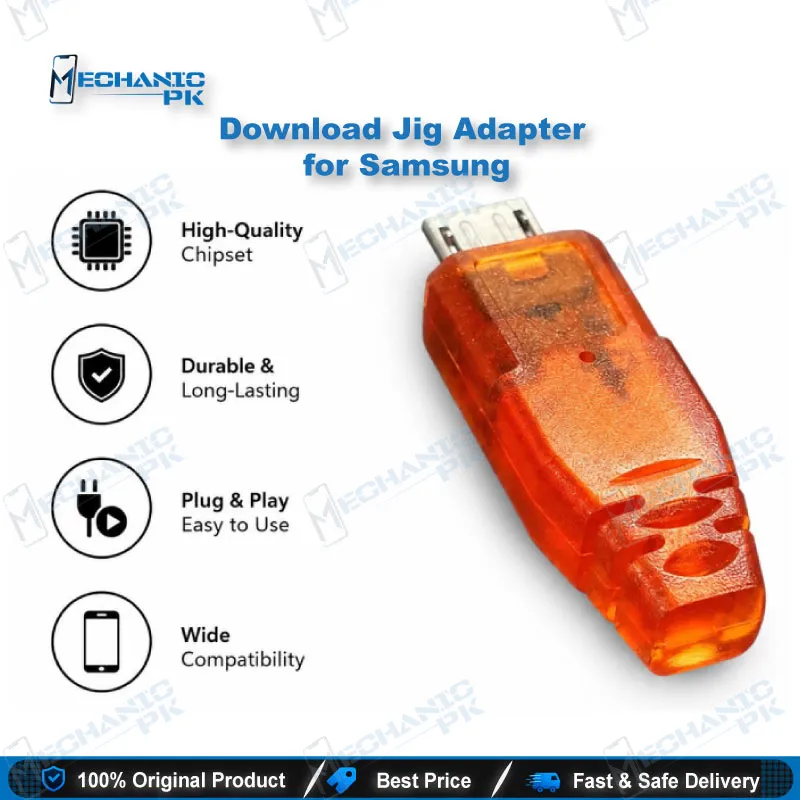
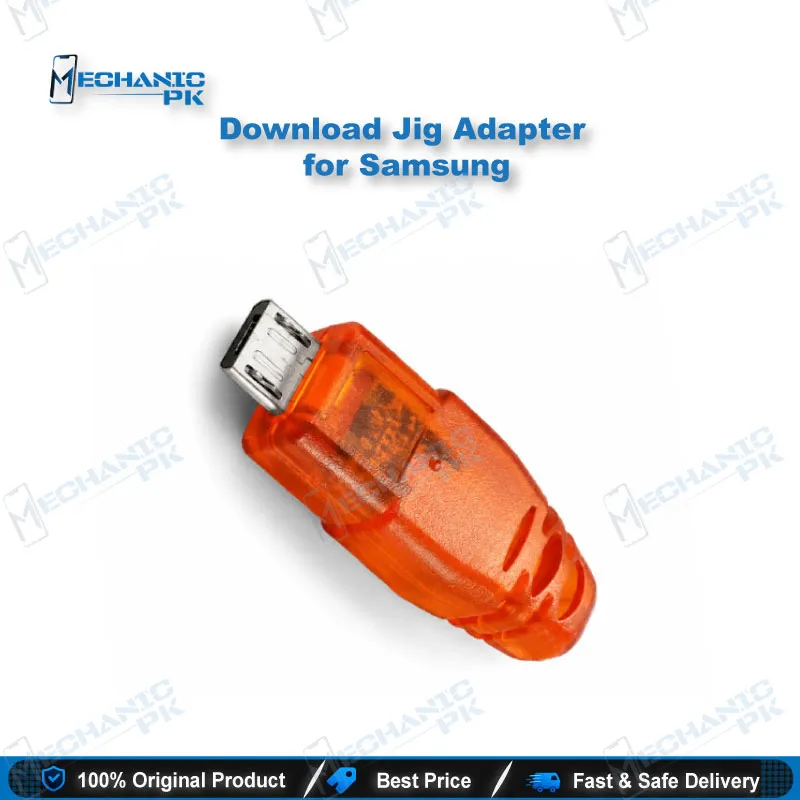
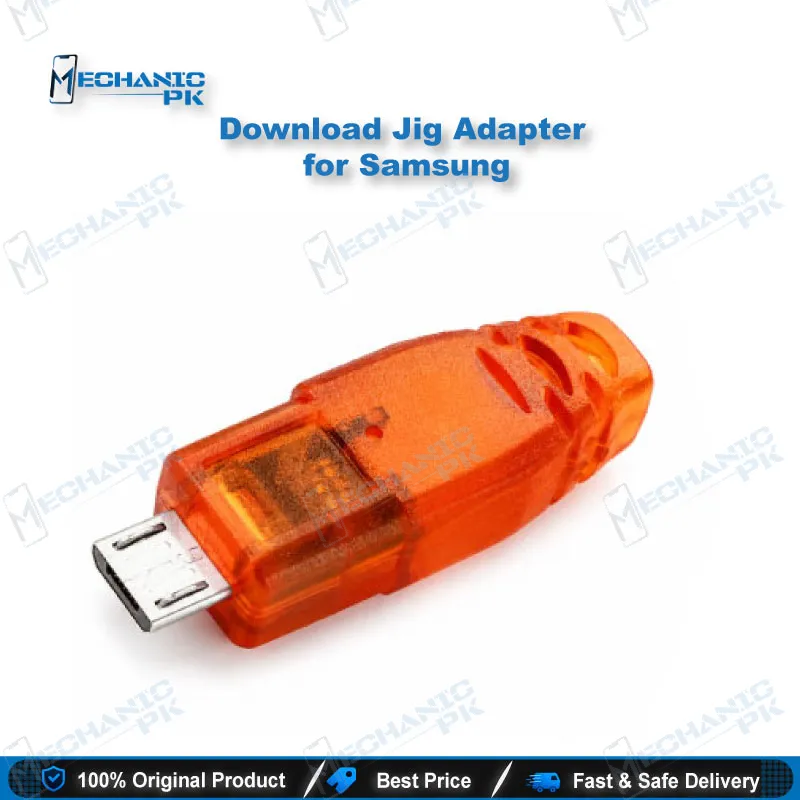
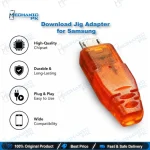

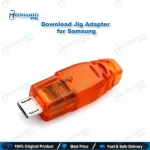
Download Jig Adapter for Samsung Micro USB 301K
₨ 1
Samsung Download Mode Jig for Micro USB Phones
This Samsung download mode jig forces supported Samsung phones into Download Mode when the key combination fails. The adapter plugs into the micro USB port and presents a 301k resistance between the ID pin and ground, which the phone reads as a download jig signal. You use it on dead or bricked phones that ignore Volume Down, Home, and Power, then connect Odin and reflash stock firmware. The jig also helps clear the flash counter on some older Samsung models. Confirm that your model supports jig-triggered Download Mode before you plug it in.
Out of stock
Samsung Download Mode Jig for Bricked Galaxy Phones
A Samsung download mode jig solves one specific problem: a phone that no longer accepts the button combination for Download Mode. This adapter uses a micro USB male plug with a 301k resistor wired between pin 4 (ID) and pin 5 (GND). Samsung firmware reads that resistance as the signal from its factory field-test jig and drops into Download Mode within a few seconds. You power the phone off, wait briefly, and plug the adapter into the micro USB port. The download screen appears, and your PC detects the device for Odin. This page covers where the jig fits in your flashing workflow and where its limits sit.
How the 301k ID-Pin Signal Works
A standard data cable leaves pin 4 unconnected, so a cable alone never triggers Download Mode. The jig closes that gap by placing a 301k resistor across the ID and GND pins of the micro USB plug. The resistor value needs close tolerance, around 1%, because the phone only reacts to a narrow resistance window. A factory-built Samsung USB jig keeps that value stable, so you skip the soldering and the guesswork of a homemade plug. You can verify the resistance with a multimeter across the two pins before you use it on a customer phone.
Where the Jig Fits in Your Samsung Flashing Workflow
Use this jig when a phone shows dead after flash, hangs on logo, loops on boot, or refuses every key combination for Download Mode. Power the phone off and leave it for a moment. Plug the jig into the micro USB port and wait a few seconds for the download screen. Connect the phone to your PC and flash the stock firmware through Odin. On older models, the jig also resets the flash counter. For example, a Galaxy S II that shows the yellow triangle after an unsigned kernel loses that mark once the jig clears the download information. The phone confirms this on screen with a message that the download information was erased.
Compatibility Limits You Should Check Before Use
The jig works through the micro USB port, so it covers Samsung phones with that connector and with firmware that accepts the jig signal. Technicians have tested this method on the Galaxy S, Galaxy S II, and Nexus S. Check your exact model before you rely on it, because not every phone responds. Some phones show Factory Mode instead of Download Mode when you connect the jig. In that case you flash an older bootloader first, then repeat the process. If a model ignores the jig completely, move to your Test Box or ISP Pinout Tools for a deeper hardware route. You can also test your USB cable and port with a multimeter before you suspect the phone board.
Fitting the Jig Into Your Repair Bench
Keep this adapter next to your Odin PC and your flashing cables, since it saves the most time on dead Samsung units that arrive without a working button sequence. It costs far less than a box or programmer, so you reach for it first and escalate only when the jig fails. If a phone still refuses to enter Download Mode after the jig, the fault usually sits in the charging port, the board, or the eMMC, and that points you toward PCB repair and eMMC programmer tools. Pair the jig with a good USB cable, a multimeter, and a stable Odin setup for a repeatable bench routine.
| Weight | 0.1 kg |
|---|
Key Features
- Micro USB male plug for direct port connection
- 301k resistor across ID and GND pins
- Triggers Download Mode without any key combination
- Works with the Odin flashing workflow
- Helps clear the flash counter on supported older models
- No battery removal or soldering needed on your side
- Compact adapter that fits any repair bench kit
- Low-cost first step before a box or hardware route
Specifications
| Category | Samsung Download Jig / Mobile Repair Accessories |
|---|---|
| Compatibility | Samsung phones with micro USB port that support jig-triggered Download Mode |
| Supported Devices | Samsung Galaxy S, Samsung Galaxy S II, Nexus S (tested models); verify other models before use |
| Technology | 301k resistance between ID (pin 4) and GND (pin 5) |
| Connector | Micro USB male |
Common Repair Uses
- Real-world Samsung flashing and recovery workflows.
- Force Download Mode on a dead Samsung phone
- Recover a phone that is dead after flash
- Reflash stock firmware through Odin
- Fix a boot loop issue after a failed update
- Fix a phone that hangs on logo
- Enter Download Mode when the button combination fails
- Clear the flash counter after an unsigned kernel
- Rule out a software fault before you open the phone for hardware repair
Compatible Devices
- Verified scope: Samsung micro USB phones that accept the Samsung jig signal. Not universal across all Samsung models.
- Samsung Galaxy S
- Samsung Galaxy S II (i9100)
- Samsung Nexus S
- Samsung phones with a micro USB port that support jig Download Mode
- Samsung phones stuck after a failed Odin flash (model support required)
- Samsung phones with a damaged Volume or Home key combination (model support required)
- Older Samsung models showing the flash counter yellow triangle
- Not suitable for USB-C Samsung models
FAQ
What is the product name?
What is this product used for?
Which devices are compatible with this product?
Who should use this product?
How do I enter Download Mode on a dead Samsung phone with a jig?
Why does my Samsung download jig show Factory Mode or not work?
Related products